History records can be accessed from a number of client interfaces including CygNet Explorer and CygNet Studio or CygNet Vision. History values can also be viewed from the CygNet Point Configuration Manager utility.
Using CygNet Explorer, you can sort the list of points in any CVS (HSS, OPCIS, SVCMON, and UIS) and the VHS by Point ID or Long Point ID. To change the sort, right-click in the points and select the desired sort (View by Point ID or View by Long Point ID). To search for a particular point use the Jump to Point... option on the right-click menu. To view the History Values for a point in the VHS, double-click on the record to open the History Values dialog box.
In other interfaces, such as CygNet Studio or CygNet Vision, you can right-click on an item and click History, then click History Values.
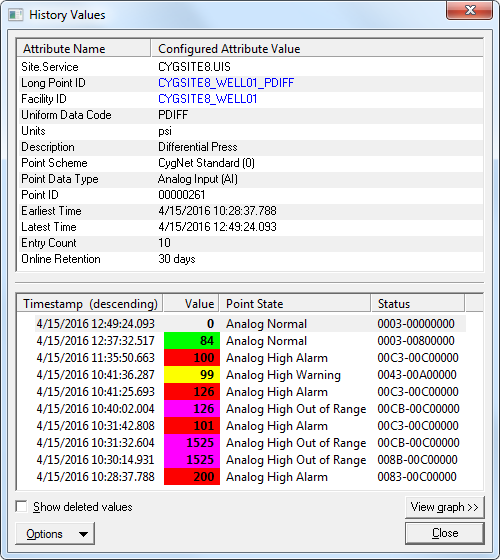
The resizable History Values dialog box shows all the history records for a given point, including additional information if the history name came from the PNT, as shown below.
The upper pane of the dialog box shows a grid of all configured attribute names and values for the point, including the number of VHS records (Entry Count), the retention period (Online Retention), and the timestamp of the earliest and latest entries. The grid can be right-clicked to copy the attribute row, name or value. (Ctrl+C also works when the row is selected).
The lower pane of the dialog box shows a list of all VHS records for the point. The color of the background and the foreground of the Value column are based on the Point State. The list can be sorted by timestamp (ascending or descending) and refreshed at any time (click F5). You can search for a record by time by right-clicking and selecting Jump to time…. The context menu also provides access to the Point Properties dialog box for the current point as well as modify history values as necessary. The strings in the Status column are a hexadecimal representation of the status bits assigned to that history entry. A detailed breakdown of what this string represents can be found by double clicking an entry to view the Status Bit Details section of the Point Properties dialog box.
Other History Values dialog box features are described in the following table:
| Property | Description |
|---|---|
|
Show deleted values |
Click the check box to select/clear whether to show/hide all deleted value points in both the pane and graph data views. See Modifying History Data for more information. |
|
View Graph >> |
Click to view the data that is currently visible in the history values list as a trend graph. See Viewing History Values Graphically for more information. |
Options  |
|
|
Point Configuration |
Click to access the Properties for Point <point> dialog box to view point properties for the selected point. See PNT Editor for more information. |
|
Facility Configuration |
Click to access the Properties for <Facility> dialog box to view facility properties for the selected point. See FAC Editor for more information. |
|
Export |
Click Export to save the values for this point to a CSV file. |
More:
 Viewing History Values Graphically

|
|
|

